Ring Sizer for iPhone: measure, check and save your size
On iPhone, check Ring Sizer’s screen calibration with the physical reference requested by the app, match the inner opening of a round ring and repeat the reading. Keep the original millimetres when converting, then save the method and intended finger in your notes. Confirm an important order with the seller’s physical fitting sample.
The most useful outcome of a ring-sizing app is a result you can explain later. “Size 7” may mean little when you cannot remember the hand, the sizing system or whether you measured a finger or an existing ring. A record with millimetres and a few notes is much easier to check with a shop.
This guide covers Ring Sizer: Measure & Try On on iPhone. Start with a suitable measurement, check the scale, and save the context before browsing jewellery. If you are using Android, follow the Android walkthrough; the two platforms have their own interfaces and calibration workflow.
Choose the method before opening the measurement view
An existing ring is useful when it already fits the exact hand and finger you have in mind. The rigid opening gives you something to compare on screen. A ring borrowed from the opposite hand, or one worn on a different finger, does not establish the target size.
Without a fitting ring, you need to measure the intended finger. A finger gauge or a jeweller’s sample will also let you test passage over the knuckle. A phone or paper estimate helps narrow the candidates; it cannot reproduce the feel of a particular band’s width and interior.
The current App Store listing describes screen measurement, camera assistance, manual calibration, six-system conversion and a sizing vault with notes and comparison. It lists iOS 17.0 or later for iPhone. Check the store for current compatibility and purchase options before installing.
What the product screens show
The screenshots below come from the official iPhone listing. Use them to recognise the product, not as physical measuring shapes: this page resizes images to fit your browser.
Official App Store listing images, including their marketing frames. The captions describe the visible app screens, not the headline above each screen. These are not a new hands-on measurement test; controls and tables may change by version.
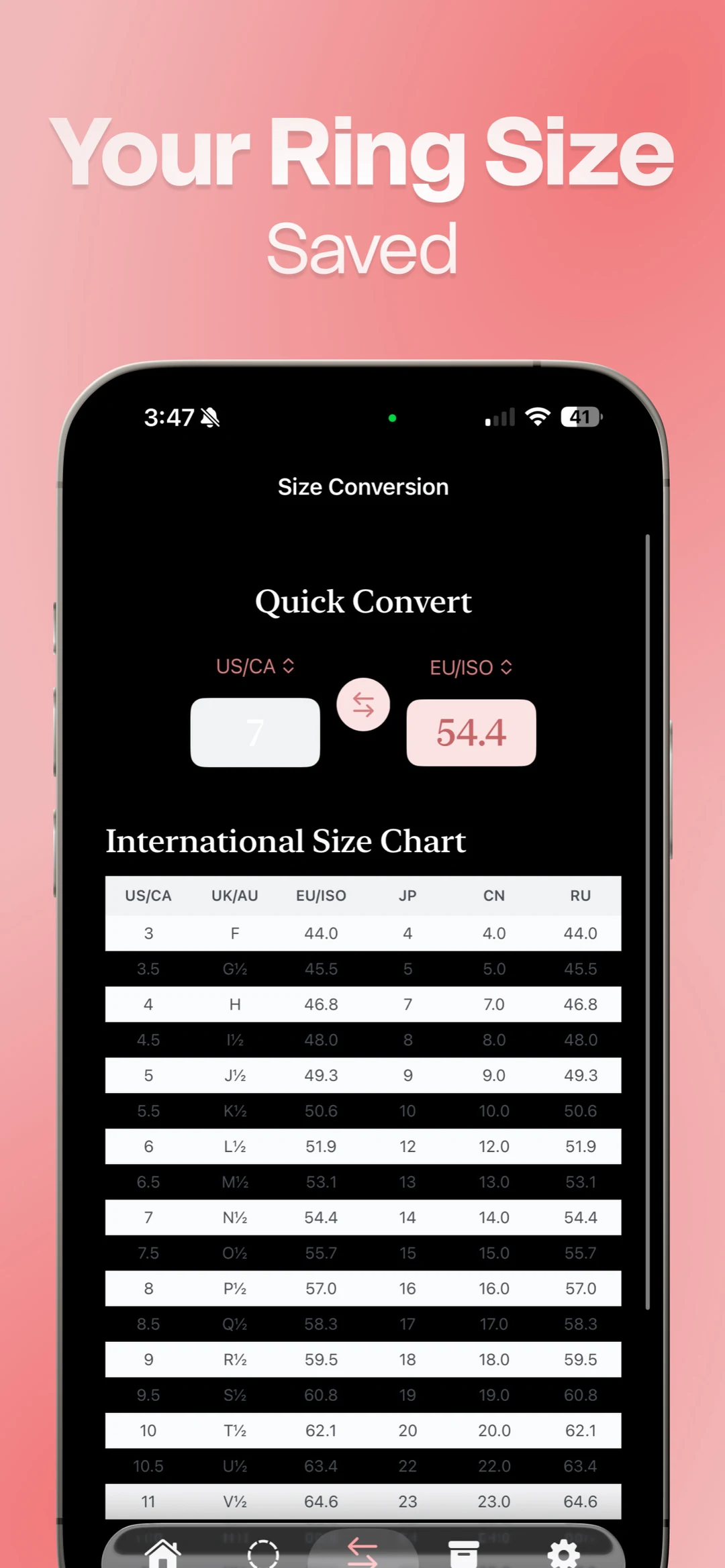
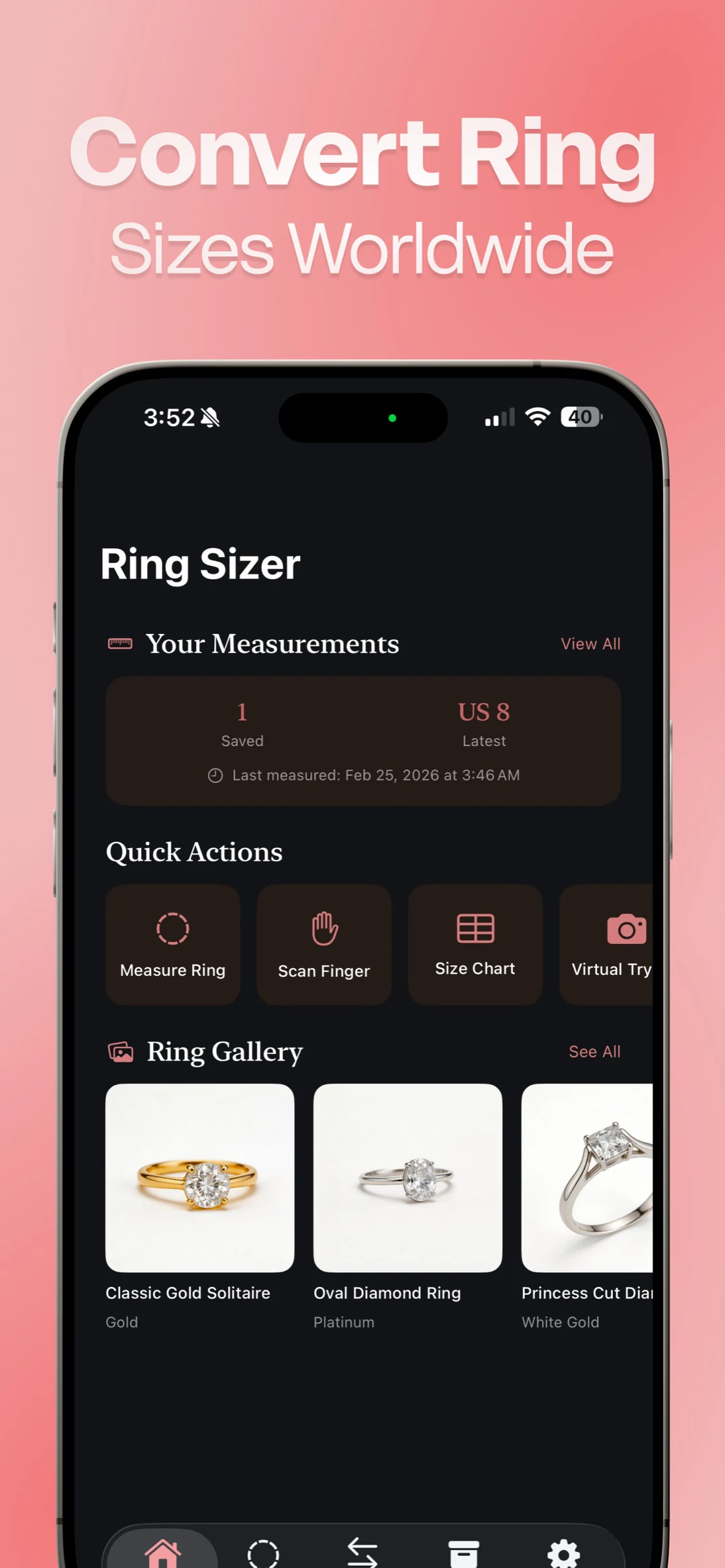
The converter screenshot is labelled “Size Conversion” and “Quick Convert.” Its example converts US/CA 7 to EU/ISO 54.4, alongside an International Size Chart. The home screenshot shows “Your Measurements,” “View All,” “1 Saved” and “US8 Latest,” with quick actions including “Measure Ring,” “Scan Finger” and “Size Chart.” Those screens show a conversion and a saved-measurement summary; the full vault screen is not pictured. The displayed numbers belong to the examples, not to your finger.
Read the units beside a result before interpreting it. A diameter, a circumference and a national size code can describe related information, but they are not interchangeable inputs. Likewise, a saved example on a store screenshot belongs to that example. It does not establish your finger’s size or validate the screen scale on your phone.
Check calibration with a physical reference
The iPhone listing describes an automatic starting scale and manual fine-tuning with a coin or credit card. Use the exact object requested by the calibration view. For a coin, confirm the denomination and issue; similar-looking coins can have different dimensions. For a card, use the specified format rather than a smaller loyalty tag or a printed copy.
View the reference from directly above and align the requested edges. Once you accept the scale, check the reference again. If the match is visibly wrong, correct it before measuring jewellery. A sharp-looking circle can still be the wrong physical diameter.
An illustrative 2% scale error on a 17.0 mm opening is 0.34 mm. In circumference, that becomes about 1.07 mm. The example shows why checking the reference is more useful than trusting extra decimal places. Our screen-calibration guide explains the relationship between display scale and measurement.
Recheck when using a different phone or when the measuring view no longer agrees with the reference. A saved calibration or an old measurement record is not a physical check of a new display.
Measure the inner opening of an existing ring
Choose a round ring that rests level. Clean the ring and display so grit does not scrape the glass, and place the ring gently. A raised setting may prevent the opening from lying flat; do not press the setting into the phone to force an alignment.
Look straight down and match the empty opening. The outside of the metal is wider and supplies the wrong boundary for fit. If the opening is obscured by glare or a shadow, improve the light or switch methods. The existing-ring measurement guide explains those edge checks in detail.
Lift the ring completely, replace it and repeat. Rotate it for another view as well. If one direction is clearly wider, the ring may be tilted or out of round. GIA’s measurement benchmark requires a round opening when translating an inside measurement through a chart. Ask a jeweller to inspect a distorted band rather than forcing it to fit a circular comparison.
A worked measurement: keep 17.0 mm before choosing a label
Imagine that fresh placements repeatedly put a round ring’s inside diameter near 17.0 mm. Its geometric circumference is 17.0 × pi, or approximately 53.4 mm. This is an illustrative calculation, not a result measured on the screenshots or a claim about a particular phone’s accuracy.
| What you keep | Example | Why it matters |
|---|---|---|
| Physical reading | About 17.0 mm inner diameter | Retains the original measurement |
| Calculated equivalent | About 53.4 mm circumference | Labels the other way of describing the opening |
| Chart candidate | Near US 6.5 on this site’s table | Identifies a size to compare with the seller |
| Context | Left ring finger, narrow reference band | Shows where and how the number applies |
Use the ring-size converter to compare systems while keeping the original units. Chart labels can differ through rounding or a maker’s size conventions. Converting first to a rounded US label, then converting that label again to another system, can discard useful detail. Send the seller the measured millimetres and the intended size system together.
The 17 mm comparison explains the neighbouring rows. Even when the table points to one nearest label, a width-matched physical sample should decide an important order.
Measuring a finger needs a second kind of check
A finger is not a rigid circle. A reading at its base must be considered alongside the knuckle that the ring will pass. Follow the instructions for the selected finger method, keep the hand relaxed and avoid pressing or tightening a measuring strip into the skin.
Record both positions if the joint is much wider. A larger opening may pass the joint but turn at the base; a smaller one may feel secure but be difficult to remove. The big-knuckle guide describes the information a jeweller needs to assess that trade-off.
Repeat under comfortable, ordinary conditions on another day. If measurements differ, note the range and inspect the setup. An average can hide a calibration problem or a change in tension. For a costly or non-resizable ring, try a suitable physical gauge in the intended width before checkout.
Camera assistance still needs usable scale
Use the camera workflow’s reference and capture instructions. A normal hand portrait does not contain enough information to establish absolute millimetres. Perspective can change apparent width, and an object behind the hand may be at a different scale.
A controlled image of a round ring beside a verified reference can support an estimate when their positions and boundaries are clear. Review the inner edge and repeat from a fresh setup rather than trusting one neat result. The photo-measurement guide shows the ratio calculation and when to abandon the image for another method.
Virtual try-on has a different purpose: it helps you consider a style’s appearance. A rendered ring on a hand is not a fitted sample or evidence of physical size. Make the fit decision from measurements and the maker’s sample, even when the preview looks convincing.
Save a note you can use while shopping
Write the context while you still remember it. For the worked example, a useful note might read: “Left ring finger; narrow round band; screen estimate about 17.0 mm inside diameter; repeated placements agree; not yet checked with the new ring’s sample.” Replace every part with your own method and observation.
Keep a later physical fitting result distinct from the home estimate. A note such as “shop gauge, 6 mm flat band” tells you why it may differ from a thin reference ring. Quietly overwriting the older value loses that explanation.
When sharing a record, review its notes first and include only what the recipient needs. The seller benefits from units, hand, finger, width and method. The saved result’s job is to support that conversation, not to turn uncertainty into a guarantee.
When the result looks wrong
| Problem | Next check |
|---|---|
| A familiar ring looks much larger or smaller | Verify calibration, inner edge and level placement |
| Replacing the ring changes the reading | Repeat the setup; check tilt and roundness |
| Conversion produces an unexpected code | Name both systems and confirm diameter versus circumference |
| A wide new ring feels tight at the same label | Compare the maker’s matching width and interior profile |
| A camera result changes between images | Improve the reference and angle or use a direct method |
If you need only a browser estimate, the on-screen sizer provides an alternative before installing. Choose the app when keeping measurements and notes is useful. Whichever route you use, preserve the millimetres and ask the seller which physical sample matches the ring you intend to buy.
Already using a different sizer? Our Jason Withers alternative comparison explains what to check before switching and when keeping your current tool or using a browser is the better answer.